
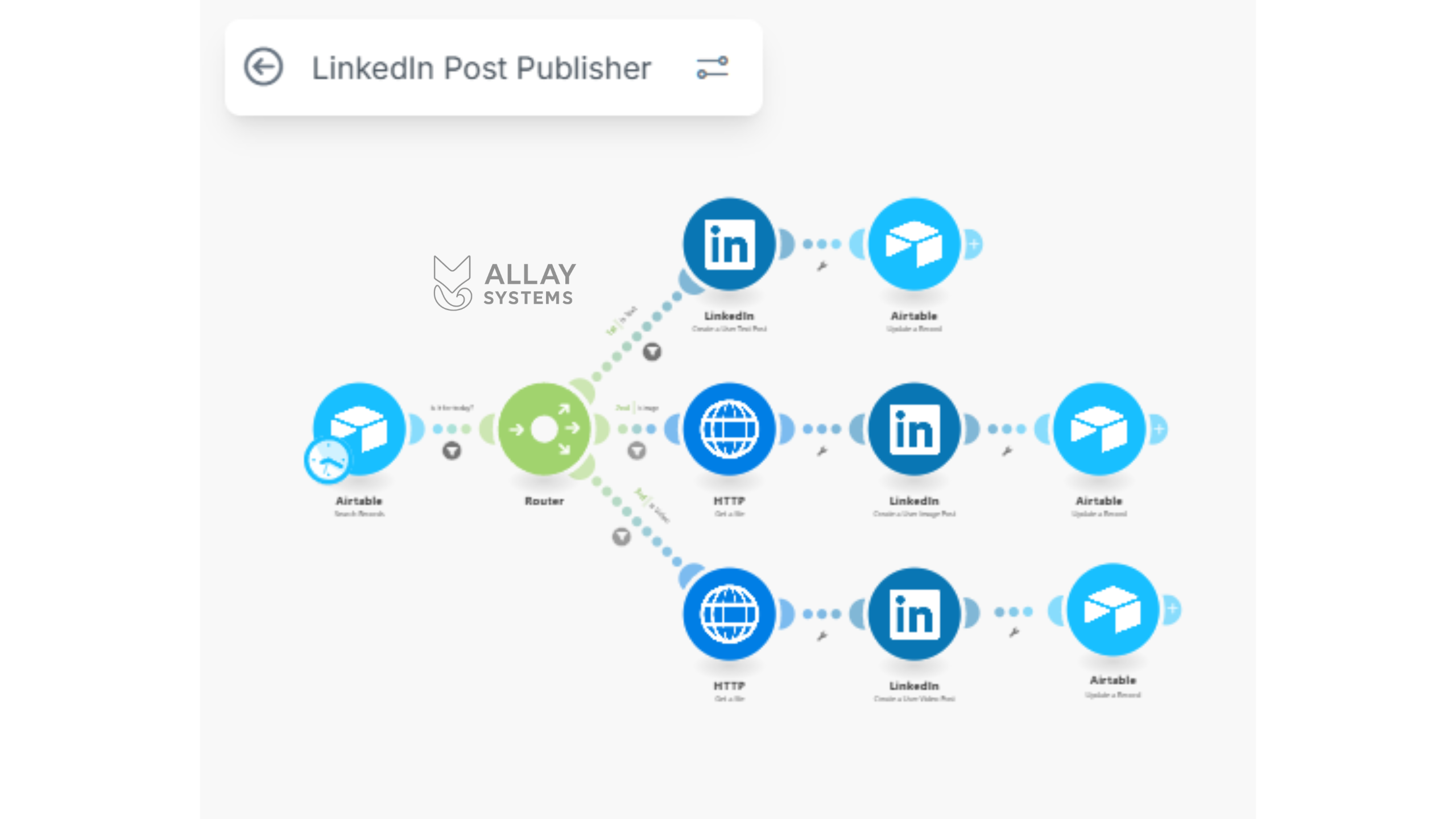
If LinkedIn posting keeps sliding down your to-do list, you’re not alone. Writing is fine; it’s the uploading, formatting, and “did I already post this?” loop that kills momentum. Here’s a simple workflow that uses Airtable as your content hub and a Make scenario that reads your records, posts to LinkedIn (text, image, or video), and updates statuses so you don’t repost by accident. Result: a steadier presence, fewer manual steps, and hours back each month.
Create your Airtable content hub (single source of truth)
Keep it simple so future-you (and teammates) can use it without a manual.
Suggested fields
- Title (single line): short internal label.
- Post Text (long text): the LinkedIn copy. Keep variants if you want.
- Post Type (single select): Text, Image, Video (drives routing).
- Image (attachment or URL): Airtable attachment is easiest.
- Video (attachment or URL): ditto; videos upload differently.
- Status (single select): Draft, Approved, Ready, Scheduled, Published, Error.
- Scheduled Time (date-time): optional; used for hands-off timing.
- Notes / Owner (long text or single select).
- LinkedIn Post ID (single line): what LinkedIn returns.
- Published At (date-time): stamped on success.
- Public URL (single line): the final post link (optional but handy).
Practical tips
- Single-select fields and a “Ready to post” view make filters bulletproof.
- Attachments in Airtable fetch cleanly; if you use URLs, make them public.
- Not into Airtable? A lean version works in Google Sheets or Notion, but Airtable handles media and statuses more smoothly.
In practice
- Coach: batch 20 tips, set Status to Scheduled with times; Make handles publishing.
- Creative: attach portfolio images, write captions, and push live without manual uploads.
- Founder: drop short demo clips and let the cadence keep your feed consistent.
Outcome: one tidy workspace for drafting, approvals, and history—less chaos, zero duplicates.
Connect Make to Airtable and LinkedIn (permissions + sanity check)

High-level steps
- In Make, create a scenario that searches Airtable for records where Scheduled Time = [now] (or, status ‘Ready’ if you’re manually launching posts from the scenario)
- Add a LinkedIn connection via OAuth and grant posting permissions. If you plan to upload video, include video scopes.
- Run a one-off test with a short text post.
Helpful reminders
- Nervous? Post a low-visibility test first or create a dummy LinkedIn account for testing.
- If auth fails, reconnect LinkedIn in Make and ensure the right scopes are enabled.
- Posting as a Company Page requires that your LinkedIn account has the right Page role.
Outcome: publish directly from Airtable—no logging in, copying, or pasting.
Build the basic posting flow (start with text)
Prove the plumbing works before adding media.
Scenario pattern
- Airtable: Search records where Status = Ready or Scheduled Time = now.
- Router/Filter: Route records where Post Type = Text.
- LinkedIn: Create a user (or organization) text post; map Post Text to the body.
- Airtable: Update the same record – store LinkedIn Post ID, set Published At, and (optional) status to ‘Published’.
Mapping notes
- Capture the Airtable Record ID early so you can update the correct row at the end.
- If you schedule, filter out posts whose time hasn’t arrived.
- Add a small “posted_by” or “channel” field if you’ll ever support multiple profiles.
Quick troubleshooting
- Text didn’t post? Try a shorter test and check the Make run log for the exact error.
- Status didn’t update? Confirm you’re passing the correct Record ID to the update module.
Net effect: batch 5 posts on Sunday; each weekday morning the scenario runs and publishes one automatically. Saves 1–2 hours of weekday context switching.
Handle images (fetch, attach, post)
Image posts need one extra step: fetch the file.
Flow notes
- From Airtable, pull the Image attachment (or public URL).
- Use a “Get a file”/HTTP Get a file module in Make so you have the binary in the scenario.
- LinkedIn: Create an image post; map Post Text and the file binary.
- Airtable: Set Status = Published, store Post ID and Published At, and capture Public URL if available.
Practical tips
- Stick to LinkedIn’s supported formats and size limits.
- Add Alt Text if accessibility matters to you (good practice, small lift).
Outcome: consistent visual posts without manual uploads.

Handle video (same idea, more patience)
Video works like images but usually needs extra permissions and processing time.
Flow notes
- Clone the image branch; swap in video handling.
- Pull the Video attachment/URL from Airtable and fetch the file.
- Use LinkedIn’s video upload module (often register → upload → post).
- After LinkedIn confirms, update Airtable to Published and store the Post ID (and Public URL if returned).
Testing tips
- Start with a short clip to validate the pipeline.
- Processing can take a bit after a “success” response—refresh before assuming failure.
- If uploads fail, confirm your LinkedIn connection includes video scopes and inspect the Make run log.
Outcome: richer posts without babysitting uploads.

Keep the scenario tidy (router logic + safety rails)
A little structure now prevents headaches later.
Router logic
- One Airtable search → Router with branches by Post Type: Text, Image, Video.
- Each branch posts and ends with the same Airtable update pattern.
Safety features
- Filters: skip records missing required fields (e.g., no image on an Image post).
- Idempotency: ignore records already marked Published.
- Approved gate (optional): only process items marked Ready; leave Draft/Approved untouched.
- Attempts counter (optional): if a post fails twice, stop retrying and set Status = Error with the error text in Notes.
Outcome: fewer failed runs, clear logic, minimal babysitting.
Statuses, scheduling, and low-effort maintenance
Status updates
- Success: Status = Published, write LinkedIn Post ID, Published At, and Public URL.
- Failure: Status = Error and copy the error message into Notes. Optional: ping Slack/Email so you see it fast.
Scheduling options
- Use Scheduled Time in Airtable and filter in Make where now ≥ or = Scheduled Time.
- Run the scenario hourly (or your cadence) and let the filter decide what’s due.
- Keep an Airtable Calendar view to plan your cadence at a glance.
Pro tip
One scenario can handle both “Ready now” and “Scheduled” by combining the Status and time filter.
Maintenance rhythm
- Weekly: glance at Error records, refresh the LinkedIn connection if needed, clear any stuck runs.
- After API changes: review module mappings in Make.
- Editorially: batch writing once a week; let automation handle the posting so your voice stays consistent without daily scramble.
Optional niceties
- Send yourself an email or Slack message when a post goes live.
- Add a simple Last Checked date in Airtable so you know the system is healthy.
Testing checklist before go-live
- Run one end-to-end test for text, then image, then video.
- Confirm Make can fetch each media file.
- Verify Status updates and that Published posts are ignored on the next run.
- Check the post on LinkedIn for formatting and visibility.
- Optional: run a quiet pilot week to validate timing and engagement.
Outcome: a tidy, resilient automation that posts on schedule, tracks what’s live, and tells you when something breaks.
Wrap-up
This isn’t about automating your voice out of the process. It’s about removing repetitive admin so you can write better posts and show up consistently. Start small: build the Airtable base, connect Make, and publish one text post end-to-end. Then add images, then video. Prefer Zapier or n8n? The same structure applies. The goal is simple: a reliable system that keeps your content moving without having to live on LinkedIn.
Three-step proof this week
- Add one Ready post in Airtable.
- Run a Make test.
- Confirm the LinkedIn post and the Airtable status update.
Let it run while you do the work only you can do.


Leave a Reply